Guides & Tips
November 25, 2026 · 2 min read
GTA 6 Best Settings: Controls, Aiming, Camera and Accessibility
The GTA 6 settings worth changing first: movement, aiming, motion blur, subtitles and accessibility.
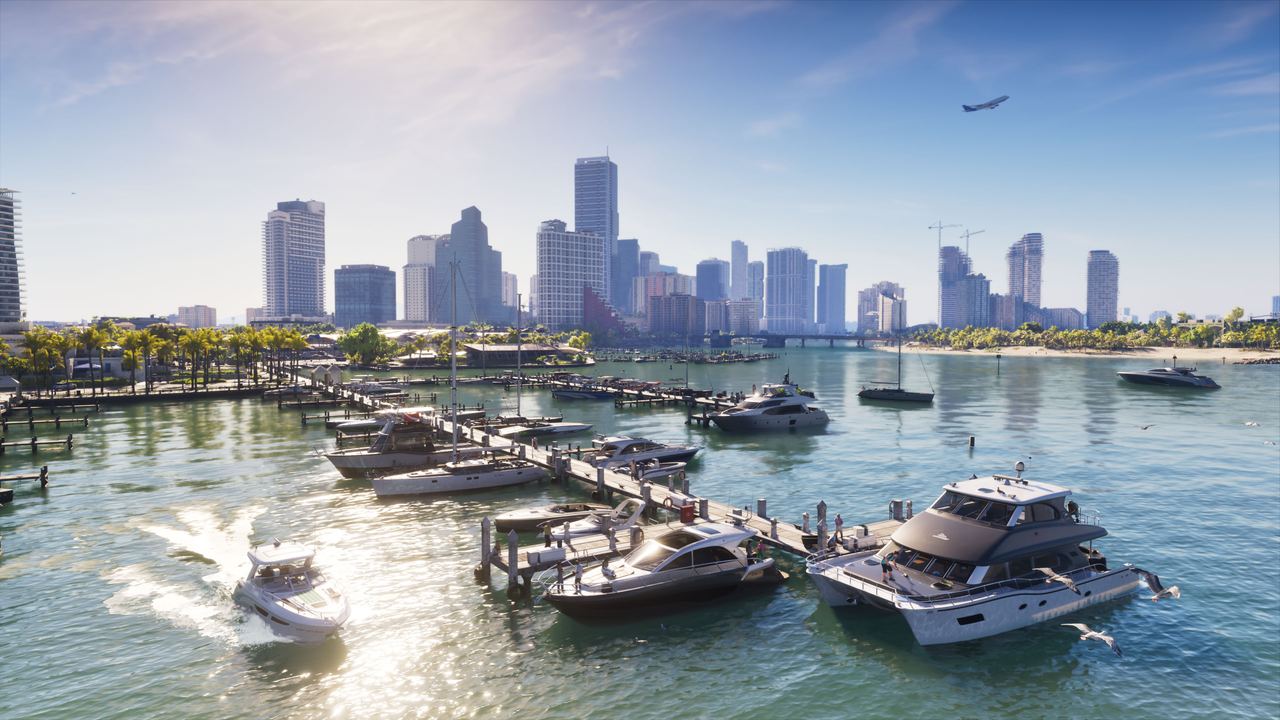
GTA 6 targets 30 fps on every console with no performance mode, so the useful changes are in controls, camera and accessibility.
Change these first
- Movement Speed: the default is Walk. Set it to Jog or Run.
- Stand & Sprint: several guides turn it off.
- Classic control scheme: brings back tapping X or A to run. Game Rant notes that it also moves jump, crouch and melee.
- Camera shake and bob: Dexerto and Insider Gaming turn them off.
- Motion blur: guides agree on lowering it, between 0 and 2.
- UI text: set it to Medium or larger.
Aiming
You can choose Lock-On, Partial or Free Aim in the gameplay combat settings. Recommendations differ: Dexerto and TheGamer prefer Partial, while Game Rant suggests Lock-On for casual play. Guides also disagree on sensitivity, so start from the default of 7 and adjust.
Accessibility
- Accessible Combat and Reduced Vehicle Damage make the game easier. Push Square says they do not disable trophies.
- Tap Assist, hold toggles and Simplified Mini Games reduce button strain.
- High contrast, colour-blind options for the Focus trail, and flashbang reduction are available.
- Subtitles support size, speaker names and a background.
- Mono audio, narration and audio descriptions are included.
There is no first-person mode. Streaming? Turn on Mute Licensed Music.
Sources
- Dexerto: best console settings
- Dexerto: controller settings
- Insider Gaming: graphics settings
- Output Lag: settings and controls
- TheGamer: best settings
- Push Square: accessibility
- Can I Play That: accessibility
- Game Rant: classic controls
- Game Rant: aim settings
Facts checked against these pages on 25 November 2026. We have not tested everything ourselves.

Discussion
0 commentsCreate a free account to comment. Reading is always free.